How to Add YouTube Playlist to a React App
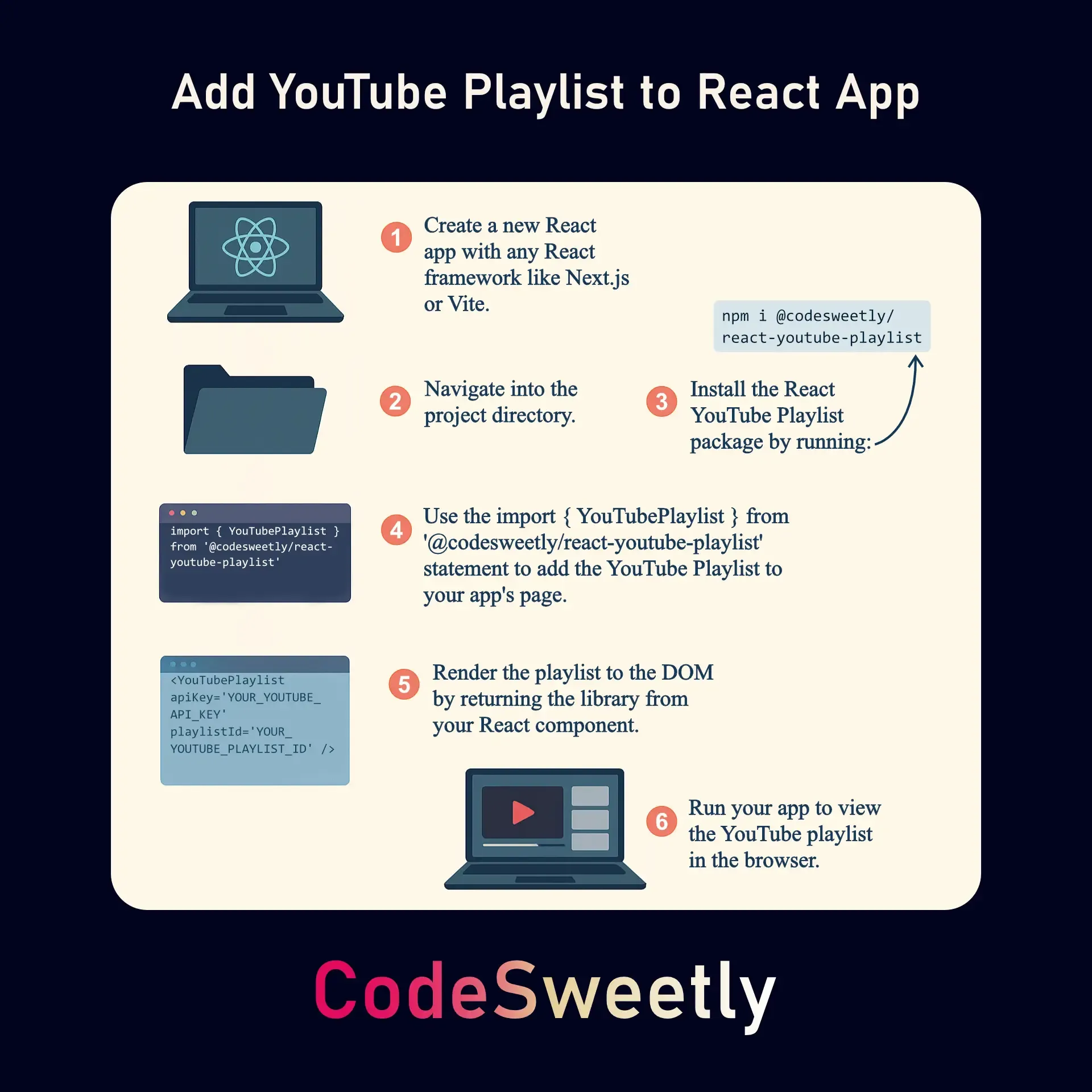
Steps to add a responsive YouTube Playlist to React apps
The @codesweetly/react-youtube-playlist is a simple, easy-to-use, and responsive playlist component with a lightbox for displaying a beautiful gallery of YouTube videos in React apps.
Here are some of the package’s features:
- SEO friendly
- Fullscreen support
- Keyboard accessible
- Mobile responsive
- Lightbox with translucent background
- Set column numbers dynamically or manually
- Customizable styles
This article will use a simple project to explain how to use the library to add YouTube playlists to your React applications.
Here is a demo of what we will build:
http://localhost:3000
Without any further ado, let’s get started with the first step.
Step 1: Get the Right Node and NPM Version
Section titled “Step 1: Get the Right Node and NPM Version”Make sure you have Node 10.16 (or greater) and NPM 5.6 (or greater) installed on your system.
Step 2: Create a New React App
Section titled “Step 2: Create a New React App”Use Vite to create a new React app.
npm create vite@latestAlternatively, you can use Yarn or pnpm to configure your project like so:
yarn create vitepnpm create viteAfter running the above command, Vite will ask the following questions:
- Ok to proceed? (y) Enter the y key on your keyboard to proceed.
- Project name: You can name it anything you wish—for instance,
react-youtube-playlist-demo-001. - Select a framework: Use your keyboard to select
React. - Select a variant: Use your keyboard to select
JavaScript + SWC.
Once you’ve answered all the questions, Vite will create your new app.
Step 3: Go Inside the Project Directory
Section titled “Step 3: Go Inside the Project Directory”After the installation process, navigate into the project directory like so:
cd react-youtube-playlist-demo-001Step 4: Install the Default Dependencies
Section titled “Step 4: Install the Default Dependencies”Using your text editor, install the default dependencies Vite pre-specified in the package.json file.
npm installStep 5: Install the React YouTube Playlist Package
Section titled “Step 5: Install the React YouTube Playlist Package”Using your text editor, install the React YouTube playlist package locally.
npm install @codesweetly/react-youtube-playlist --saveStep 6: Import the React YouTube Playlist Package
Section titled “Step 6: Import the React YouTube Playlist Package”Open the App.jsx file located in the src folder of your Vite application.
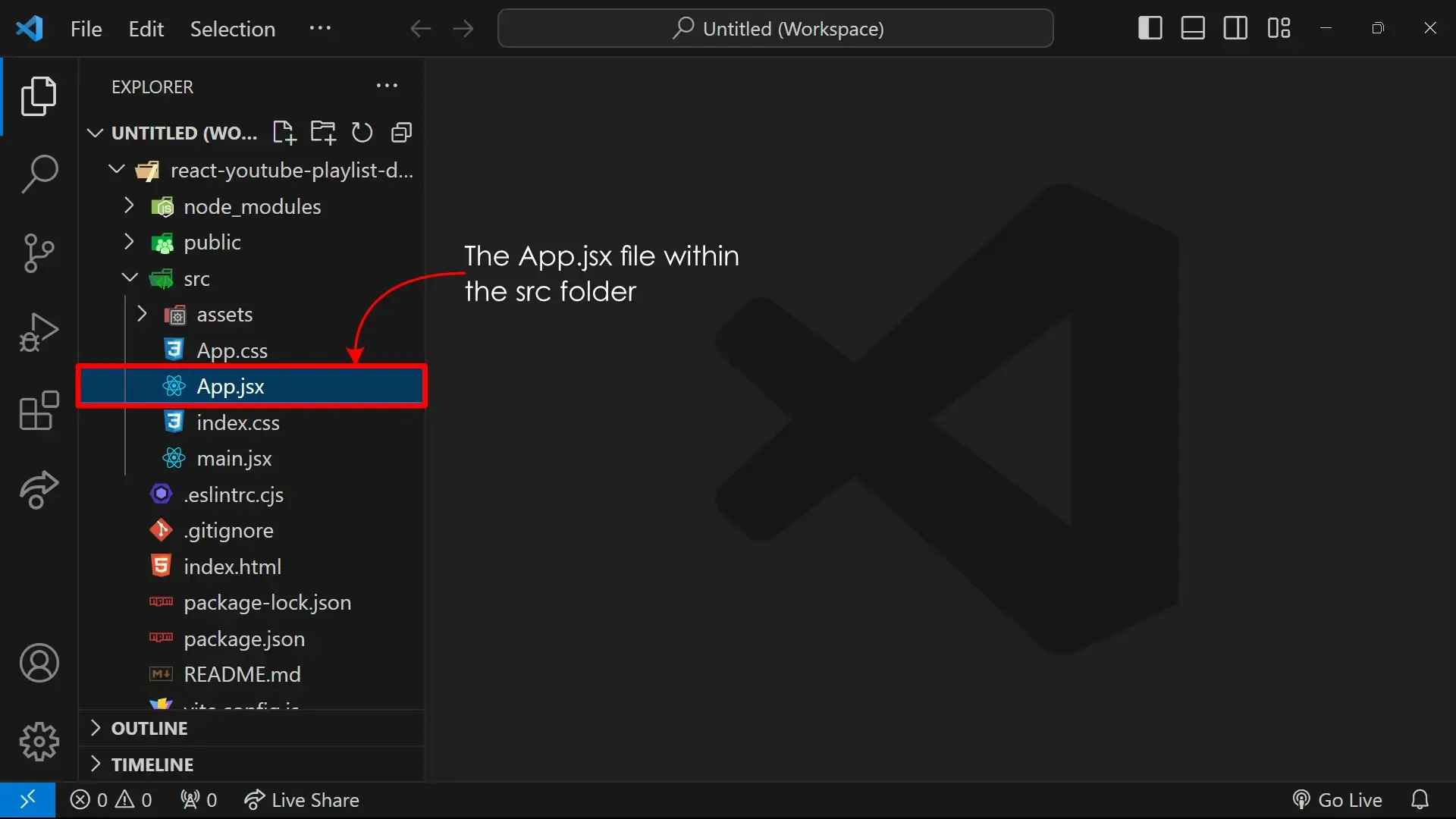
The App.jsx file within the Vite App’s src directory
Then, delete all its content. And import the YouTube playlist package:
import { YouTubePlaylist } from "@codesweetly/react-youtube-playlist";import "./App.css";Step 7: Render the React YouTube Playlist Package
Section titled “Step 7: Render the React YouTube Playlist Package”After importing the playlist package, render it to the DOM as follows:
import { YouTubePlaylist } from "@codesweetly/react-youtube-playlist";import "./App.css";
function App() {  return (    <>      <YouTubePlaylist        apiKey="YOUR_YOUTUBE_API_KEY"        playlistId="YOUR_YOUTUBE_PLAYLIST_ID"      />    </>  );}
export default App;
The YouTubePlaylist library accepts the following props:
| Props | Type | Default | Description |
|---|---|---|---|
apiKey | string | undefined | (Required) Your project’s YouTube API key. (Learn how to get an API key) |
playlistId | string | undefined | (Required) The ID of the YouTube playlist you wish to display. Note: A playlist’s ID is the list of characters after the “list=” in the URL—for instance, |
| number or keyword (string) | “auto” | (Optional) The number of columns. | |
| number or keyword (string) | 230 | (Optional) The minimum width of the gallery’s columns. | |
| number | 24 | (Optional) The gallery’s gap size. | |
| ImageGalleryStylesType | | (Optional) Custom styles to override the following element’s default styles:
|
Note for Remix users
Section titled “Note for Remix users”Remix users should add "@codesweetly/react-youtube-playlist" to their remix.config.js file:
/** @type {import('@remix-run/dev').AppConfig} */module.exports = { ignoredRouteFiles: ["**/.*"], serverDependenciesToBundle: ["@codesweetly/react-youtube-playlist"], serverModuleFormat: "cjs",};The serverDependenciesToBundle field tells Remix to transpile and include the "@codesweetly/react-youtube-playlist" package in the server bundle.
Note for NextJS users
Section titled “Note for NextJS users”NextJS users should declare the "use client" directive at the top of their file. It should sit above all other import statements like so:
"use client";import { YouTubePlaylist } from "@codesweetly/react-youtube-playlist";import { ImageGallery } from "react-image-grid-gallery";The "use client" directive tells NextJS to consider all modules imported into the page as part of the Client Component module graph.
The YouTubePlaylist package works only as a Client Component because it uses React’s State and Lifecycle effects, such as useState() and useEffect().
Step 8: Run the Application
Section titled “Step 8: Run the Application”Take a look at your app in the browser by running the following:
npm run devLive Demo
Section titled “Live Demo”See the video recommendations page for a live demo displaying CodeSweetly’s playlists using the React YouTube Playlist package.